Similar Images Search Is A Robust Feature Of Google Images Search

Google has recently improved Google Image Search and added a new feature to find Similar Images, this feature visually search the images base on picture, picture sizes not on picture name, image name.Google has improved a lot and we can find more pictures of same person, place, thing, temple, building etc. Earlier when we were searching then search result was not visual result and it was fetching all the images which has name of a particular person, suppose if I was searching Aishwarya then it was giving result Aishwarya with different different peoples.

To Search Similar Images just open URL http://images.google.com/ and try to search anything, take mouse over on image as an image come, click on Similar Images option, you will get a lot of images which will visually very similar with chosen one for similar search result.

I had taken an example below -

Google Similar Images Search

Transfer Money Online From HDFC Bank to Other Bank And HDFC to HDFC


HDFC login
To Transfer from any bank to other bank or in same bank , first we need to add Payee account or Beneficiary account details to whom you need to transfer a money.
Note:  If you anytime "got session become invalid error" then re login in to account.


Steps to Add One Time Beneficiary -:
1. Open website – www.hdfcbank.com
2. Select HDFC Bank NetBanking
3. Click Continue and Enter your Customer ID (Internet Banking UserID).
4. Enter your Ipin (Internet Banking Password), choose secure Image if applicable for your bank account.
5. Click on Third Party Transfer –  If this Tab is not enabled for your account then fill the form in your Bank branch to make enable internet   banking.
6. Click on Add a Beneficiary


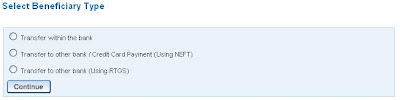
7. Select Beneficiary Types-:

Select Beneficiary
  •  Transfer with in Bank - Choose option if you want to transfer from HDFC to HDFC only.
  •  Transfer to other bank / Credit Card Payment (Using NEFT) - Choose option if you want to transfer from HDFC to Other Bank account or for any credit card.
  • Transfer to other Bank ( Using RTGS ) - If you want to transfer to other bank account from 2 lacs to 10 lacs then choose this service, There is no waiting time in processing of payment and it is faster then NEFT service.

8. Enter Beneficiary Account No / Credit Card No – Enter the bank account of other bank.
9. Choose Beneficiary account Type.
10. To get IFSC Code, Click here to select IFSC code.
  • If you know IFSC Code then Enter IFSC Code and Click on Search to get the bank Details.
  • If you do not know then enter Bank Full Name ( Like State Bank Of India not put SBI ) click on Search, Bank Details will come in the results , Choose your Bank with Branch Details.
  • If you don’t know both above then you can search your bank through the Branch Name by putting location of bank which is written on your cheque book or passbook.
  • Select Your Bank.
Note : IFSC Code is different for each bank branch, IFSC code written on your Cheque also, you can verify it from selected IFSC code, or search on Google.com to verify it for your Branch.

11. Enter Beneficiary Name (As Per Bank Record)
12. Enter Your Email ID
13. Click on Add Button

Beneficiary will be added successfully and it will enable or activated after 24 hours, you will able to transfer the payments after 24 hours only, check your account for next day.


Check Beneficiary Added or Not -


1. Click on View List of Beneficiaries.
2. Select Transaction type, under which you have added beneficiary, Choose Transfer to other Bank using NEFT if you have added under it.
3. Click on View Button, you will see list of added beneficiary with status of enabled, if enabled status then you can payment for same beneficiary.
4. From this screen, you can also delete beneficiary, edit Beneficiary details, you can also add new one as Described steps above.

Note: If you are making any changes in added beneficiary and making transfer then payment will transfer after 24 hours only.

Steps to Make Transfer Online to Other Banks from HDFC –


1. Click on Third Party Transfer
2. Select transaction Types – Transfer to other bank / Credit Card Payment (Using NEFT)
3. Select From Account- from which you want to transfer the money.
4. Select Beneficiary from the list
5. Enter Transfer Amount
6. Enter Transfer Description like From Your Name
7. Fund transfer status to be sent to – Mobile or Email
8. Enter Your Mobile Number or Email to get the Status.
9. Choose I accept Term and Conditions and Click to continue for proceed the Payment.
10. Verify the Details once, Make Confirm.
11.You will get – Message at the Top  “ NEFT Fund Transfer Initiated with a Reference number, Take print screen of this page and save it as Image or write a reference number for future communication. Check your account Balance.
Don't / Does for  Making An Online Transfer:
  • Do not share Internet banking username and both passwords with others, even need not to share with customer care.
  • Do not do any transaction in front of other person.
  • Do not send username and password in Mails to anyone.
  • Do not store username and password in e-mails / Mobiles.
  • Do sign out after making a Transaction / Transfer. 
  • Close Browser completely after making a Transaction / Transfer.
  • Clear Browser cookies if you know to clear.

Check Online Broadband Internet Speed - Test in Few Seconds

You can easily check your Internet broadband speed through online and even you can also know about download speed.You have to know about few terms before testing the speed.

What is Kbps - Kilo bits per second is a unit of measurement for data transfer speeds.It is not a kilo bytes per second. kilo bytes per second is considered in terms of downloading.One byte is equal to 8 bits.Bit is very small unit of data.


Data Storage Formula :
1 MB ( Mega Bytes) =1024 KB (Kilobytes)
1 GB  (Giga Bytes)=1024 MB
1 TB  (Tera Bytes)= 1024 GB


Data Travels Per seconds  through the INTERNET     - At Download Speed.
If Bandwidth 1 Mbps = 1024 kbps ( Kilo Bits Per Second )- i.e approx 128 kbps ( Kilo Bytes Per Second)
If Bandwidth 2 Mbps = 2 * 1024=2084 kbps                     - i.e approx 256 ( Kilo Bytes Per second )
If Bandwidth 3 Mpbs=  3 * 1024=3072 kbps                     - i.e approx (384 Kilo Bye Per second )


USB Modem - Device is like a pen drive which is used to connect a internet, Tata Photon Plus and Reliance Net connect are devices used for connecting an internet.


DSL Modem - Digital Subscriber line which is connect a computer to internet.we can say these modems are called Cable modem, broadband Modem.

Steps to test Speed of an internet online -
1.Open website http://www.speedtestonline.com/
2.Then click here to find out .
3. It will give the result.

To Verify go with other website too - http://www.internetspeedtest.in/

Learn about current band width and about data downloading like any file ( music file,movie file, software exe etc).

For an example if you have 512 kbps (Bandwidth) plan then you should have current bandwidth more than 400 kbps and it should show download speed more than 50 kbps to 64 kbps.

See little calculations -

Formula to check Actual expected Download kbps speed = (kbps value bandwidth /8)

Ex - For a connectivity of 512 kbps ( kilo bits per second)


Convert int Kilo Bytes per second ( 512/8 ) = 64 kbps( 64 Kilo Bytes Per Second)

Therefore as per calculation an internet connection of 512 kbps bandwidth can download at Maximum speed of 64 KB Per Second (kbps).

Google Bookmarking - Make Favorites Online and Access From Any Computer


Google Bookmarking -Make Favorites Online and Access from Any System

We are used to add favorites in Internet Explorer or in any browser which were only saved for a particular browser as computer formatted then all added favorites get deleted. Google has introduced a new concept called Google Bookmarking to store useful stuffs online through simply login in Google bookmarking web URL and access the same added favorites from any computer via an internet.

Make Favorites Online And Accessible From Any Computer Via An Internet :-
  • Open web URL www.google.com/bookmarks
  • Login with your Google Account or Gmail Username and Password.
  • Go in Tools > Add Bookmark 
  • Suppose you want to save any Technical stuffs URL or good information based URL then enter the page name, page name can be anything whatever you have understood by the article or technical stuffs.
  • Location (URL) – Location is just URL of technical stuffs which you want to refer in future which you got hardly from web search.
  • Lables – you can provide comma separated Tags like Mobile, SIM if I got article related mobile repairing.
  • Description- If you want to provide description about favorites then give otherwise ignores it.
  • After all click on Add Bookmark, Bookmark will be added in your private list, it won’t accessible to others people.
Steps To Create Bookmark List Publicly -:


If you want to share publically useful stuffs to others then you can create your own list.
  • Click on Create New list Button at left side.
  • Provide the name and Description and create the list.
  • Select Make Public to make public else you can choose private too.
  • Enter Useful websites URL and favorites and click on add button to add the bookmark.
  • You can add as many as from Add Stuff for a particular list.
This list will be publicly shares automatically with other Google users when they are searching any content from Google bookmarking.


Search Google Bookmarks which are created as Public :-
  • Open web URL www.google.com/bookmarks
  • Enter anything in Google bookmarks search box to search Google bookmark, you will get the list of many bookmarks which are shared publically by any other Google user.
  • You can view all public lists which are created by others by clicking on public list.
Import Delicious Bookmarks :- 
  • Click on Import Delicious Bookmarks.
  • If you are accessing your delicious account using yahoo username and password then provide Yahoo username and Password.
  • Click on Export to Google Bookmarks
  • Your all bookmarks will be importing in to your Google account.
Share Bookmarks Through Invite To Others :-


Select any public or private bookmark from the list and click on share button from right corner , provide the email address and message.

Make Electricity Bill Payment Online For City of Uttar Pradesh

Longer time waiting in a queue, Cheque bounces, no clearance of cheque on the time, power cut off for not paying the bill on the time.To get rid of these things Madhyanchal Vidyut Vitaran Nigam Limited, Pashchimanchal Vidyut Vitaran Nigam Limited, Dakshinanchal Vidyut Vitaram Nigam Ltd and Purvanchal Vidyut Vitaram Nigam Ltd have taken responsibility to facilitate good services to consumers and taking care of many other stuffs.It ensures to consumer for providing a best service and cheque clearances on the time with in a week from depositing dates.

So be  Cheque free and enjoy the online payment in the easy steps and note down the Transaction ID and if possible take print or screenshot of payment receipt for future references.

They have introduced recently online Electricity Bill Payment system which available so for district Ghaziabad, Noida, Gautam Buddh Nagar, Moradabad, Rampur, Muzaffar Nagar, Saharanpur, J P Nagar and Bijnor, for other districts new website get launched written in last of this post.

Steps To Make Online Electricity Bill Payment for Below District:-

1.Open website www.pvvnl.org
2.Click on Online Bill Payment ( इन्टरनेट से बिल भुगतान )
3.Select Language Hindi or English
4.As you select A Language, you will get the little information how much charged from you when you are doing online payment.
5.Click on I Agree Button
6.Select District Name from the given List – This is list of few district of Uttar Pradesh as below
  • BAGHPAT
  • BIJNOR
  • BULANDSHAHAR
  • G B Nagar / NOIDA
  • GHAZIABAD
  • J P NAGAR
  • MORADABAD
  • MUZAFFARNAGAR
  • RAMPUR
  • SAHARANPUR
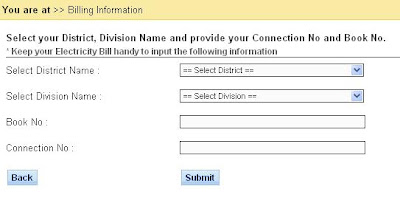
7.As you Select District, Division Name  ( खंड का नाम ) will populate, Select Division Name from the list for your electricity connection.

Make Electricity  Bill Payment through PVVNL
Electricity Connection Details


8. Enter Book No ( बुक संख्या )
9. Enter Connection No (कनेक्शन संख्या )
10.Click on Submit, you will get the details of your electricity Connection, Consumer Name, Connection No, Book No, Division Name and Other details.
11.Select CheckBox Do you want to Pay
12. Click on Pay Now, Choose mode of payment as Debit Card or Credit Card or Internet Banking. I recommend choosing net banking option, it is cheaper than debit card or credit card.

                        Net banking Charges – 10 Rs. each transaction
                        Debit Card / Credit Card Charges – 1.50 % of Bill Amount.

13. As you select Net Banking option, you will get the list of many banks. choose your internet banking enabled any bank.
14. Make Payment through your internet banking , It will generate a Transaction ID , Take screenshot or print of this Bill Receipt for future reference ,or write down somewhere Transaction Id to check your payment done.

You can verify Your payment or can take print of your payment slip on below URL -        
https://www.billdesk.com/pgmerc/pvvnl/index.htm

Apart from it additional feature here is that Part payment cannot be done here, However consumer can make advance payment through the system after paying their current electricity bill payment. If you are getting any difficulty regarding online payment then you free to send email at pay@pvvnl.org


If you are not able to make online payment, then still you can pay electricity bill through cheque as you were doing earlier.

PVVNL also has started customer care toll free number 18001803002 for any issue related electric power  or for any complains.

Note - You can check Your Bill Amount Online


Check Your Electric Bill Amount - Please Fill the Connection No , Book No , Division, District
Click Here https://www.billdesk.com/pgidsk/pgmerc/pvvnl/pvvnl_details.jsp

IF CURRENTLY SHOWING ONLY ADVANCE PAYMENT OPTION, NO OPTION AVAILABLE TO SEE CURRENT BILL, IT MEANS YOU DON'T HAVE DUES OR BILL TO PAY, WAIT FOR TILL UPDATE THE PAYMENTS , CHECK THE BILL AMOUNT IN NEXT MONTH.

TAKE PRINT OF BILL ONLINE USING CHROME BROWSER

Press CTRL + P,  Take Print or Save File As PDF.I have written article how to make PDF of Web page.

-----------------------------------------------------------------------------------------------------------------------------------------------------------------------------------------------------------------------------------------------------------------------------------------------------------------

For Other Districts / City of Uttar Pradesh, The New Website Got Introduced For Online Payments -

The Website is - http://www.uppclonline.com/

Simple 5 Steps To Register for Electric Bill Online Payments - 

1. To register online visit the website www.uppclonline.com
2. For registration, you must know your Account ID and the Bill No. Or SBM Bill No. as printed in the your electric Bill. Check your Printed Bill.
3. Click on the Register Button on the home page and enter your Account ID and Bill ID. Your details  will get  displayed on next page.
4. See your details once to validate it is correct and enter your email address, Mobile number, password, secret question and secret answer.
5. Click to Submit , On submitting you will get a confirmation mail to your mail id. Click on the link in the mail and login to activate your account. On successful activation your online registration will complete and you may able to make payment by clicking on login button, enter your account no and password which you had given at the time of registration.

Note - 
1.You must have E-mail ID for this registration.
2.You must have knowledge of Internet banking prior doing this payment, take print of receipt or note down Transaction ID.


This service is get grouped in 4 sections as per areas as below -

1. Company Name : Madhyanchal Vidyut Vitaran Nigam Limited 
Contact for online payment, registration & details - 1800-180-0440
1) Gangaghat
2) Hardoi
3) Khairabad
4) Lakhimpur
5) Lucknow
6) Mahmudabad
7) Mallawan
8) NawabGanj(Barabanki)
9) Pilibhit
10) Rae Bareli
11) Rudauli
12) Sandila
13) Shahabad
14) Shahjahanpur
15) Sitapur
16) Sultanpur
17) Unnao
18) Zaidpur

Use Website   http://www.uppclonline.com/

2. Company Name : Pashchimanchal Vidyut Vitaran Nigam Limited

Contact for online payment, registration  & Details  - 1800-180-3002
1) Bijnor
2) Bilari
3) Budana
4) Dadri
5) Debai
6) Gajraula
7) Kairana
8) Khekda
9) Khurja
10) Mawana
11) Meerut
12) Muradnagar
13) Najibabad
14) Noida
15) Saharanpur
16) Shikarpur
17) Sikandrabad

Use Website   http://www.uppclonline.com/

3. Company Name - Dakshinanchal Vidyut Vitaram Nigam Ltd
Contact for online payment,registration  & Details  - 1800-180-3023

1) Aligarh
2) Atrauli
3) Bharthana
4) Etah
5) Etawah
6) Firozabad
7) Hathras
8) Jhansi
9) Kosikalan
10) Mathura
11) Vrindavan

Use Website   http://www.uppclonline.com/

4. Purvanchal Vidyut Vitaram Nigam Ltd
Contact for online payment, registration  & Details  - 1800-180-5025
1) Azamgarh
2) Bansi
3) Ghazipur
4) Gorakhpur
5) Jaunpur
6) Mubarakpur
7) Mughalsarai
8) Obra
9) Renukoot
10) Robartsganj
11) Varanasi

Use Website   http://www.uppclonline.com/

Don't / Does for  Making An Online Payment :
  • Do not share Internet banking username and both passwords with others, even need not to share with customer care.
  • Do not do any transaction in front of other person.
  • Do not send username and password in Mails to anyone.
  • Do not store username and password in e-mails / Mobiles.
  • Do sign out after making a Transaction / Transfer. 
  • Close Browser completely after making a Transaction / Transfer.
  • Clear Browser cookies if you know to clear.